
Download RoarPOS
Three Android apps: the register your staff serve on, the display the customer sees, and the screen the kitchen works from. Download each on the tablet it is for, or copy the file across from a computer.
Android 8.0 or newer. Free to install; an app connects only to a cafe that has given it a code.
The three apps
Install whichever the tablet in your hand is for.
Register
The till itself: the menu, the cart, payments, tickets and reports. This is the one every cafe needs.
Customer display
Faces the customer beside the till: it mirrors the order as it is rung up, takes their loyalty sign-in and their tip, and shows what the card will be charged.
Kitchen display
The board the kitchen works from: tickets as they are ordered, aged by colour, bumped one line or a whole order at a time, split across stations.
Installing on the tablet
- Open the downloaded file. Android asks once whether to allow installs from this source; allow it.
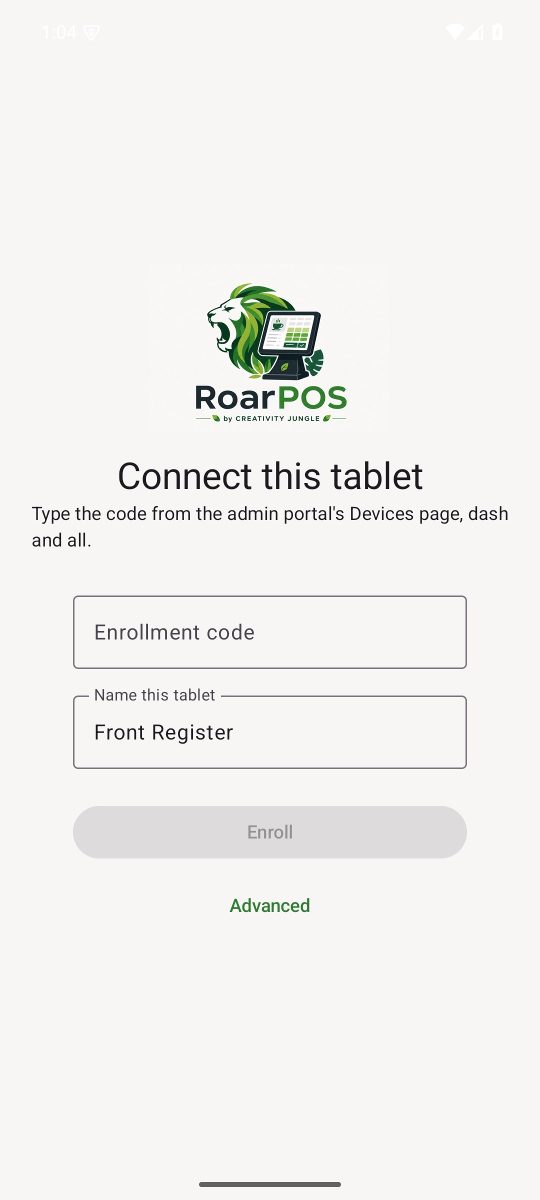
- Open the app. It shows Connect this tablet.
- In the owner portal, open Devices, choose the location and press Generate enrollment code.
- Type the whole code, dash and all, name the tablet, and press Enroll.
- On the register, sign in with a staff PIN set on the portal's Employees page. If nobody has one yet the app says so and offers to check again.
Already installed?
Each app checks for a newer version itself and installs it from its own settings, so there is no need to come back here for a new build unless a tablet is being set up for the first time. On the register that is Settings; on the kitchen display, Settings in the top bar; on the customer display it is behind the code that takes the tablet out of kiosk mode, so nothing about updates is ever shown to a customer.
RoarPOS
The point of sale built for coffee. Part of the HGCS ecosystem by Creativity Jungle.